Skip to content

Early preview · A free Chrome extension for teachers

Record it once. Every student gets it.

Click through a website task one time, like turning in an assignment or joining a class Meet. Pathlight writes each step, zooms in on the right button and blurs personal info. You get a guide students can read, practise and print.

Or try recording right in your browser Free · No account · No watermark

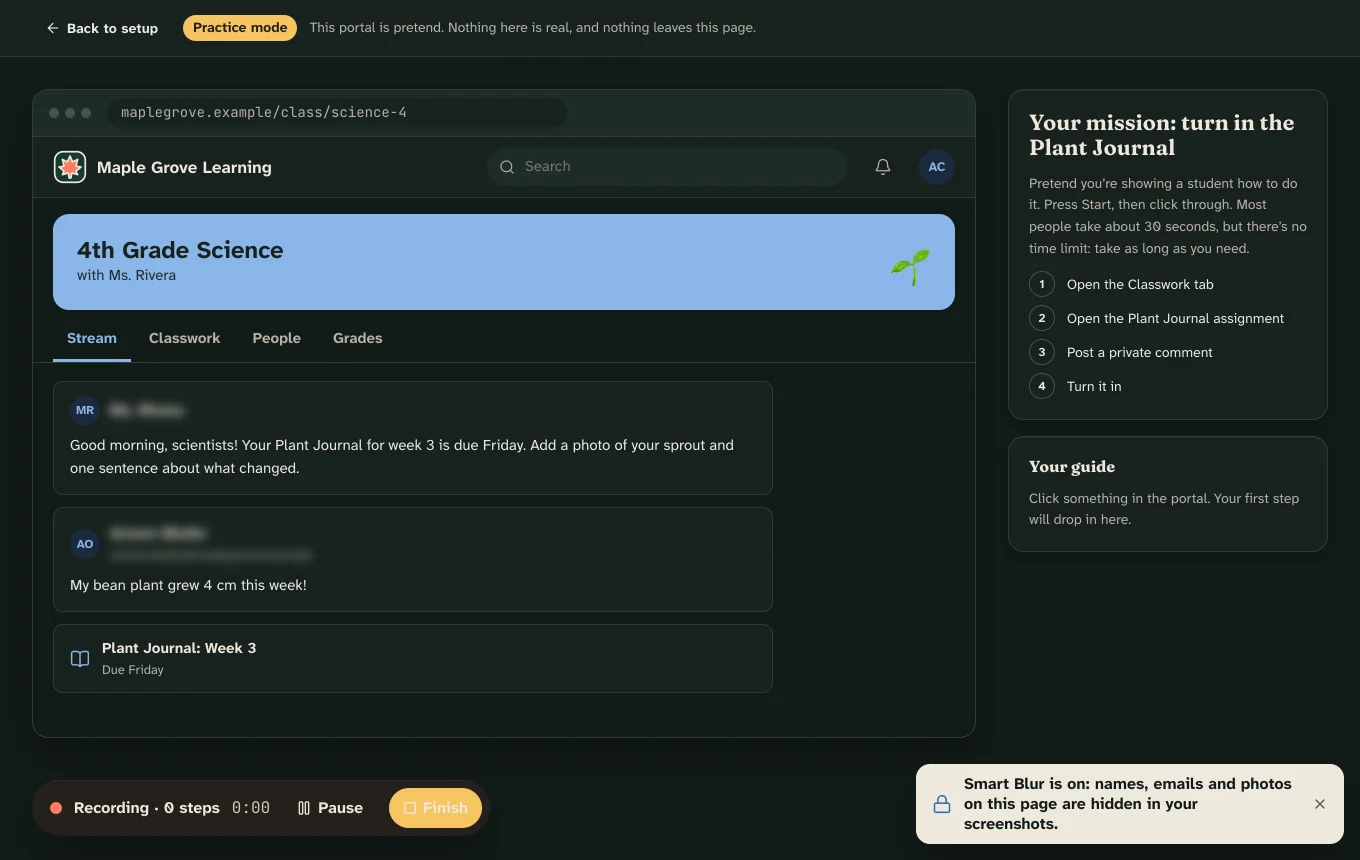
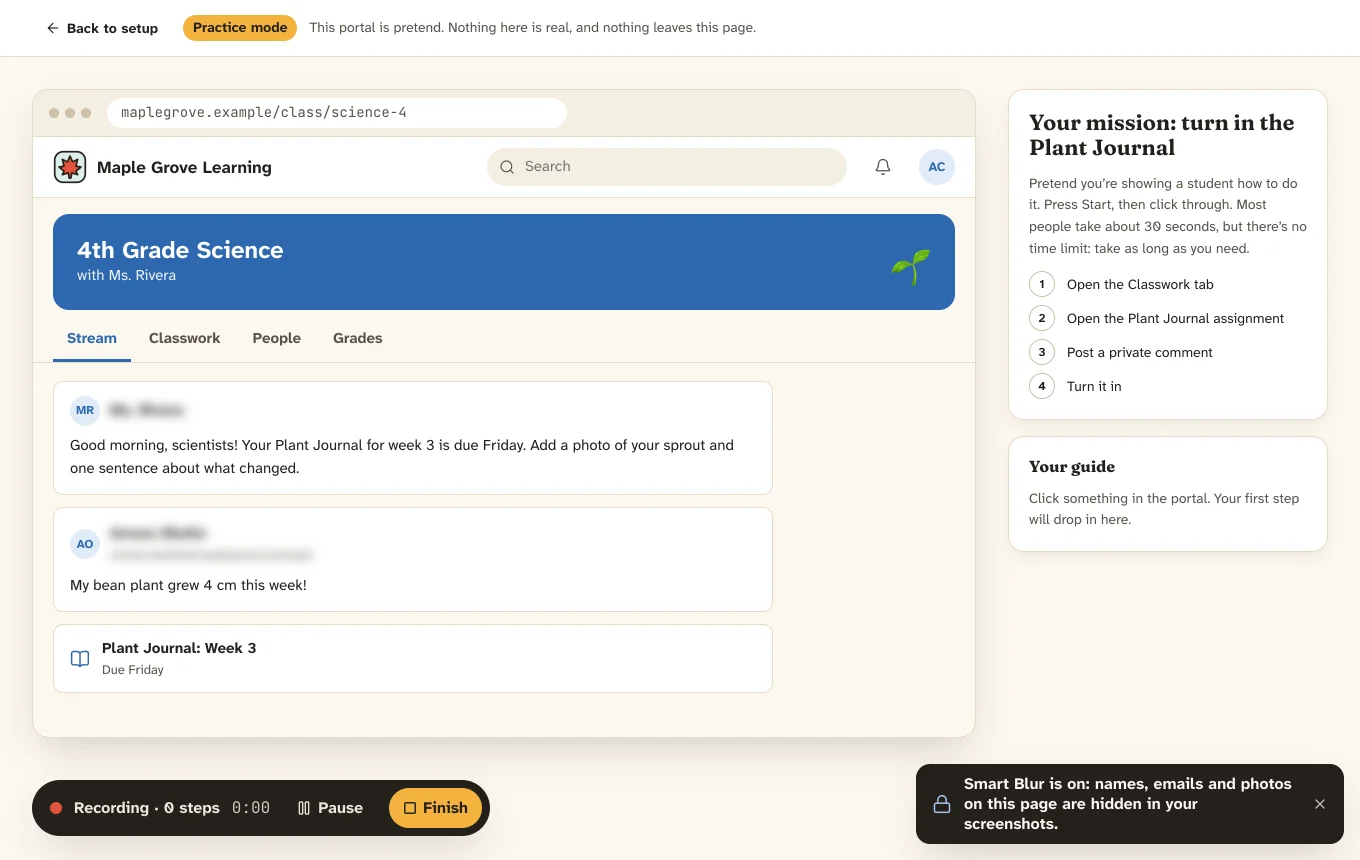
The Pathlight practice portal while recording: a pretend class website, a mission list on the right, and the recording bar with Pause and Finish at the bottom.The Pathlight practice portal while recording: a pretend class website, a mission list on the right, and the recording bar with Pause and Finish at the bottom.
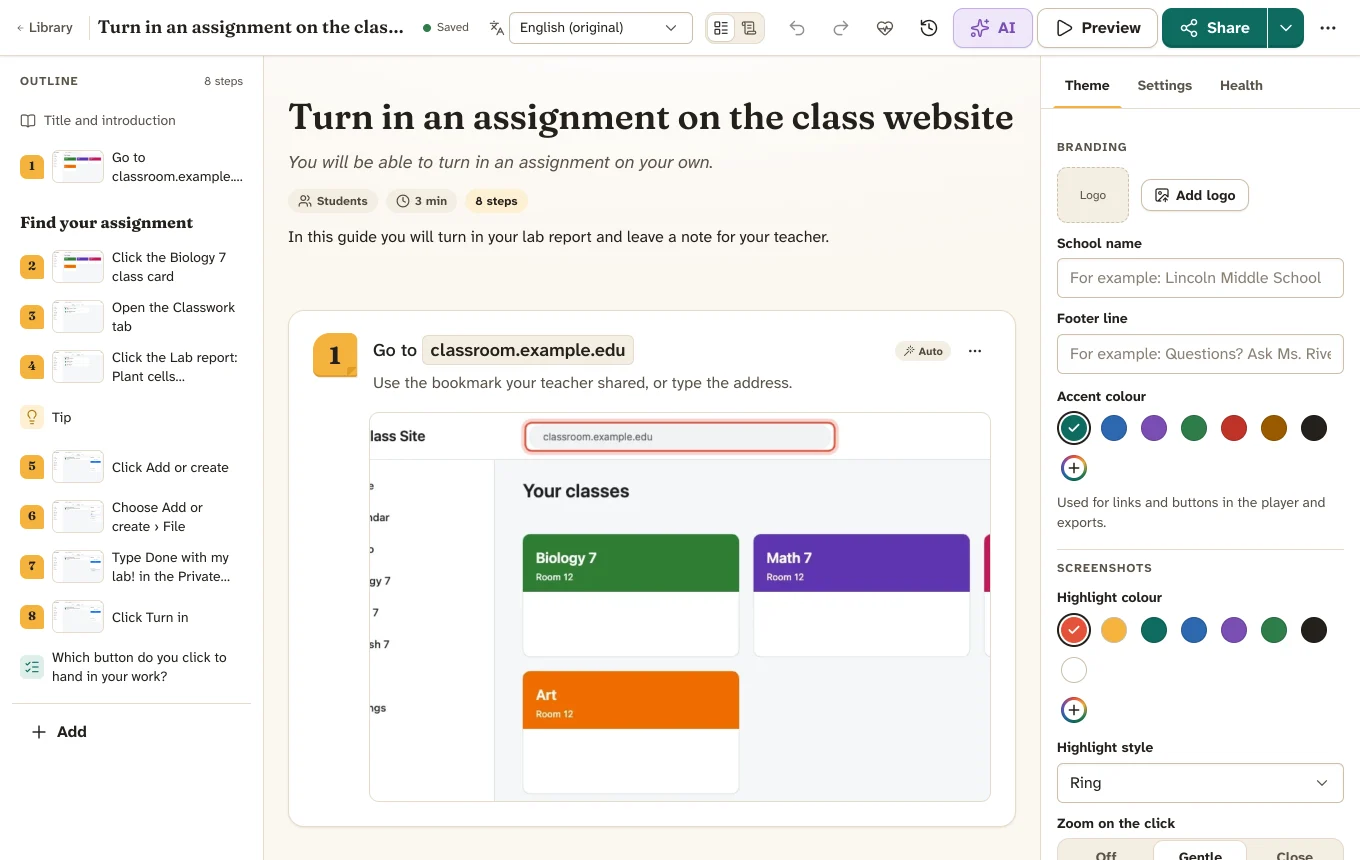
The Pathlight guide editor: an outline of eight steps on the left, the first step with its zoomed, highlighted screenshot in the middle, and theme settings on the right.The Pathlight guide editor: an outline of eight steps on the left, the first step with its zoomed, highlighted screenshot in the middle, and theme settings on the right.
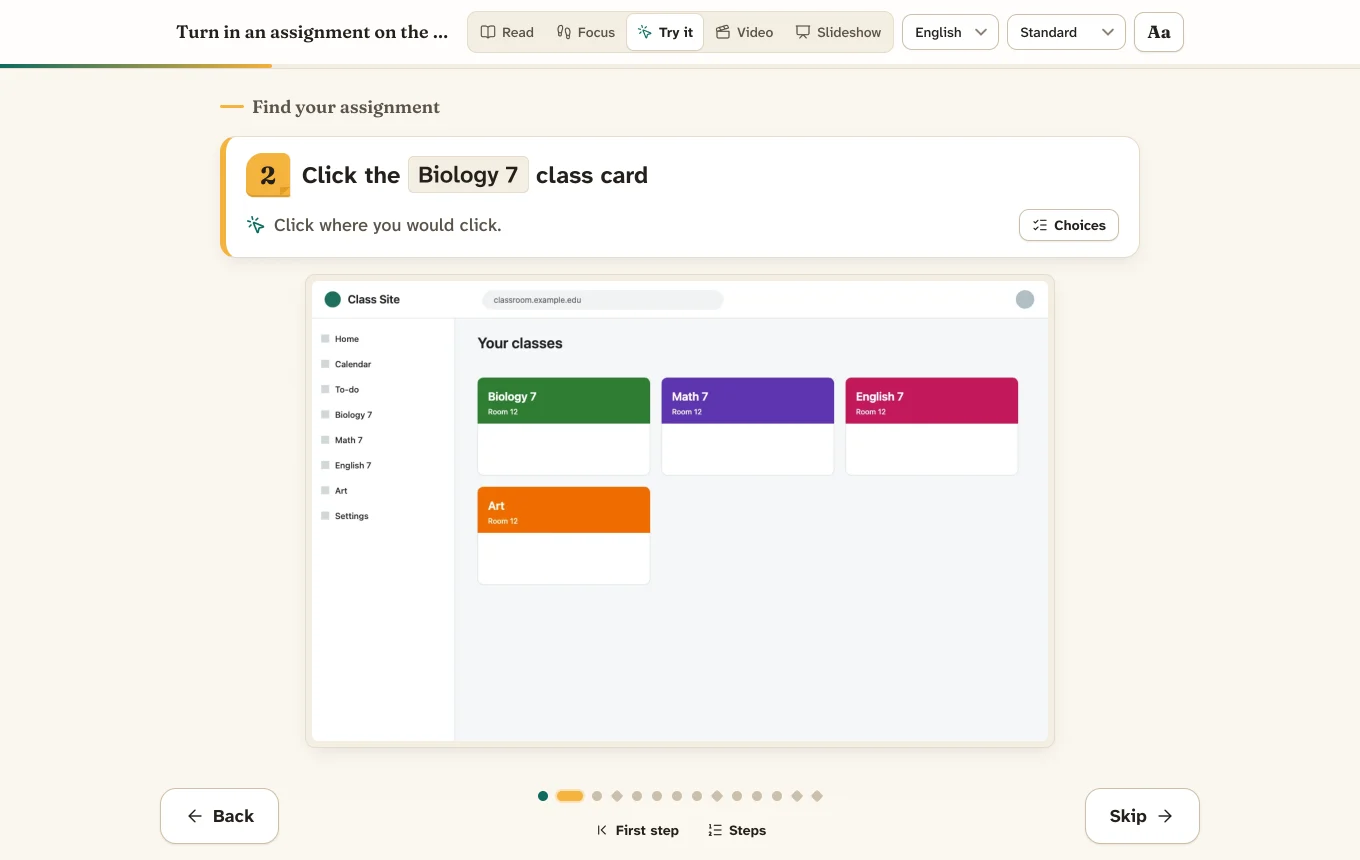
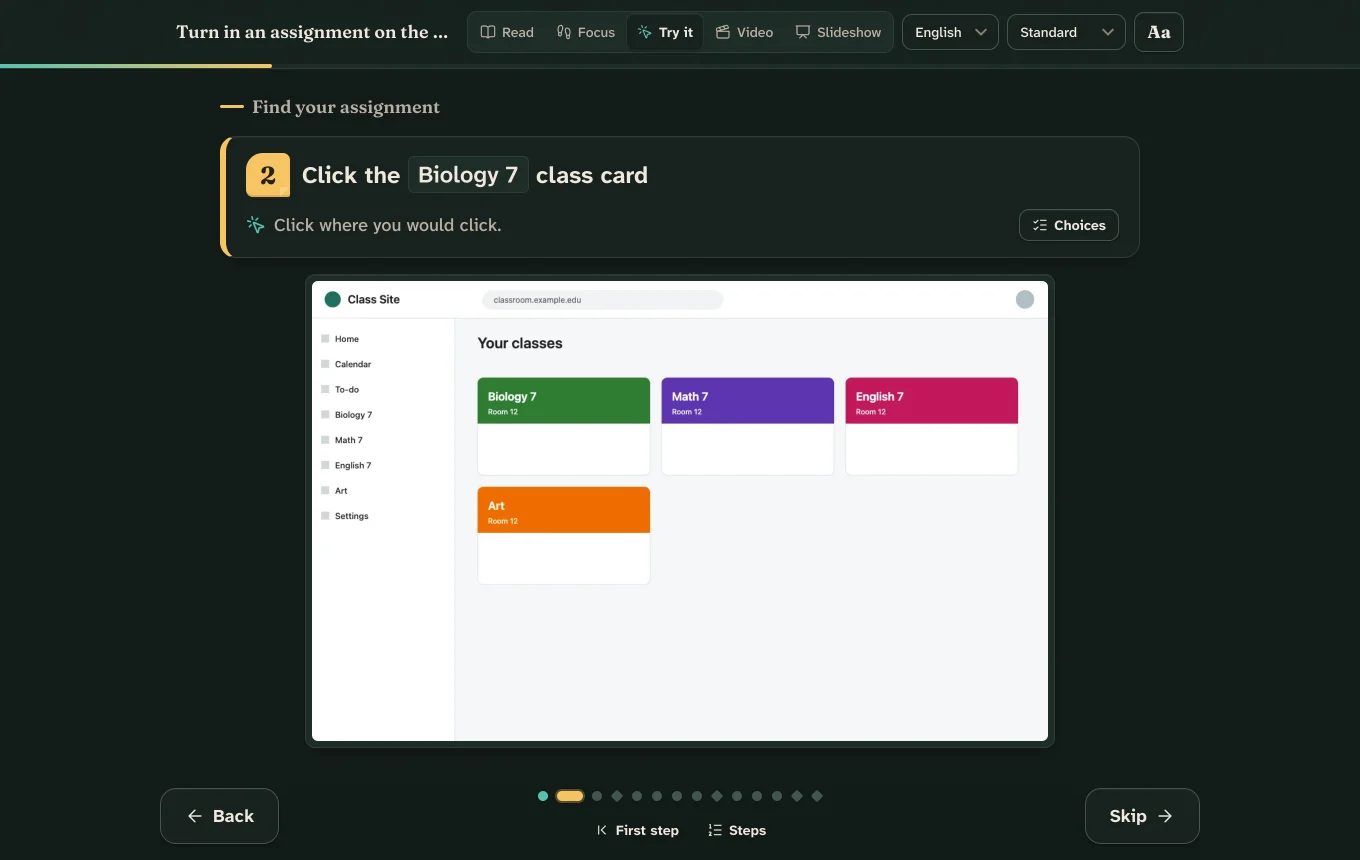
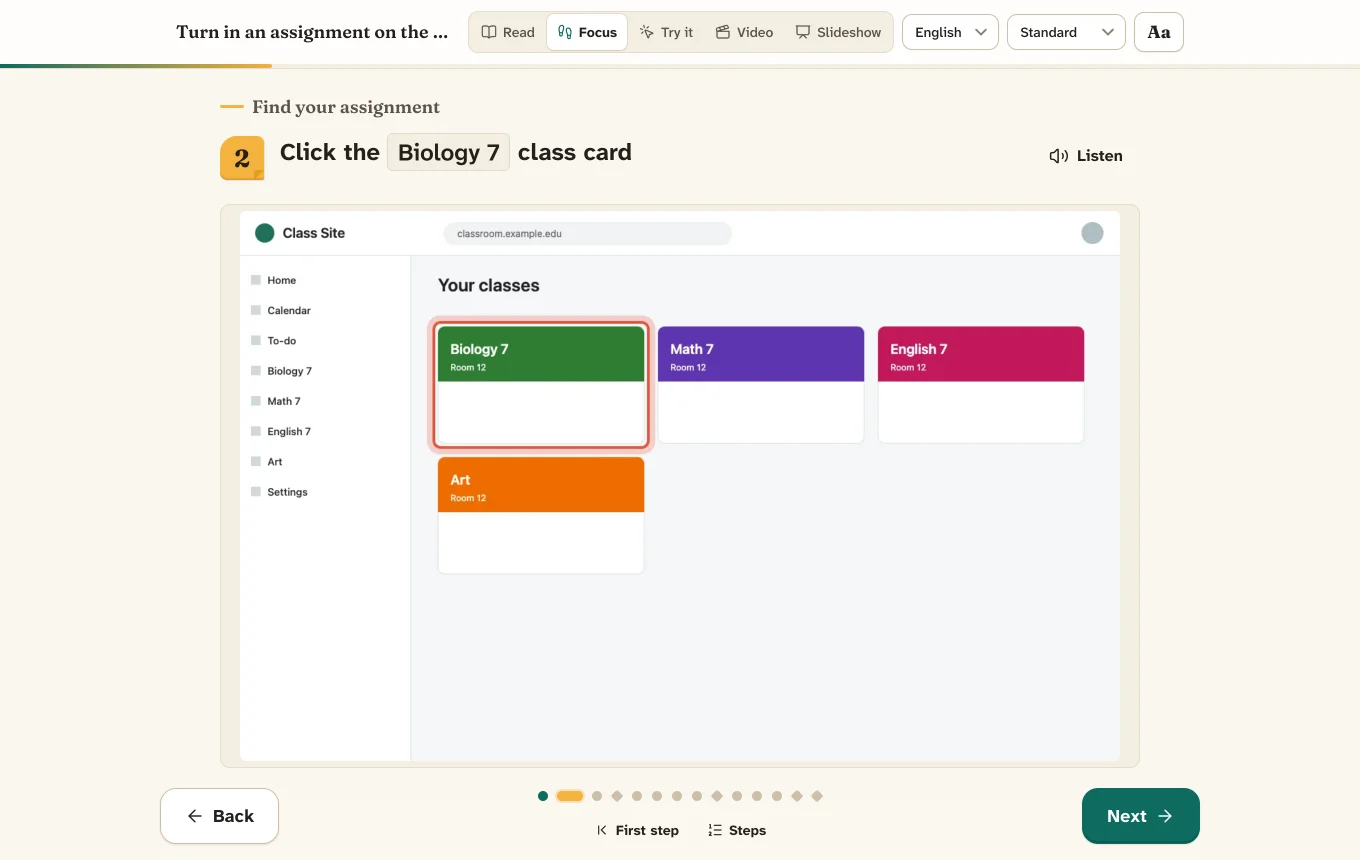
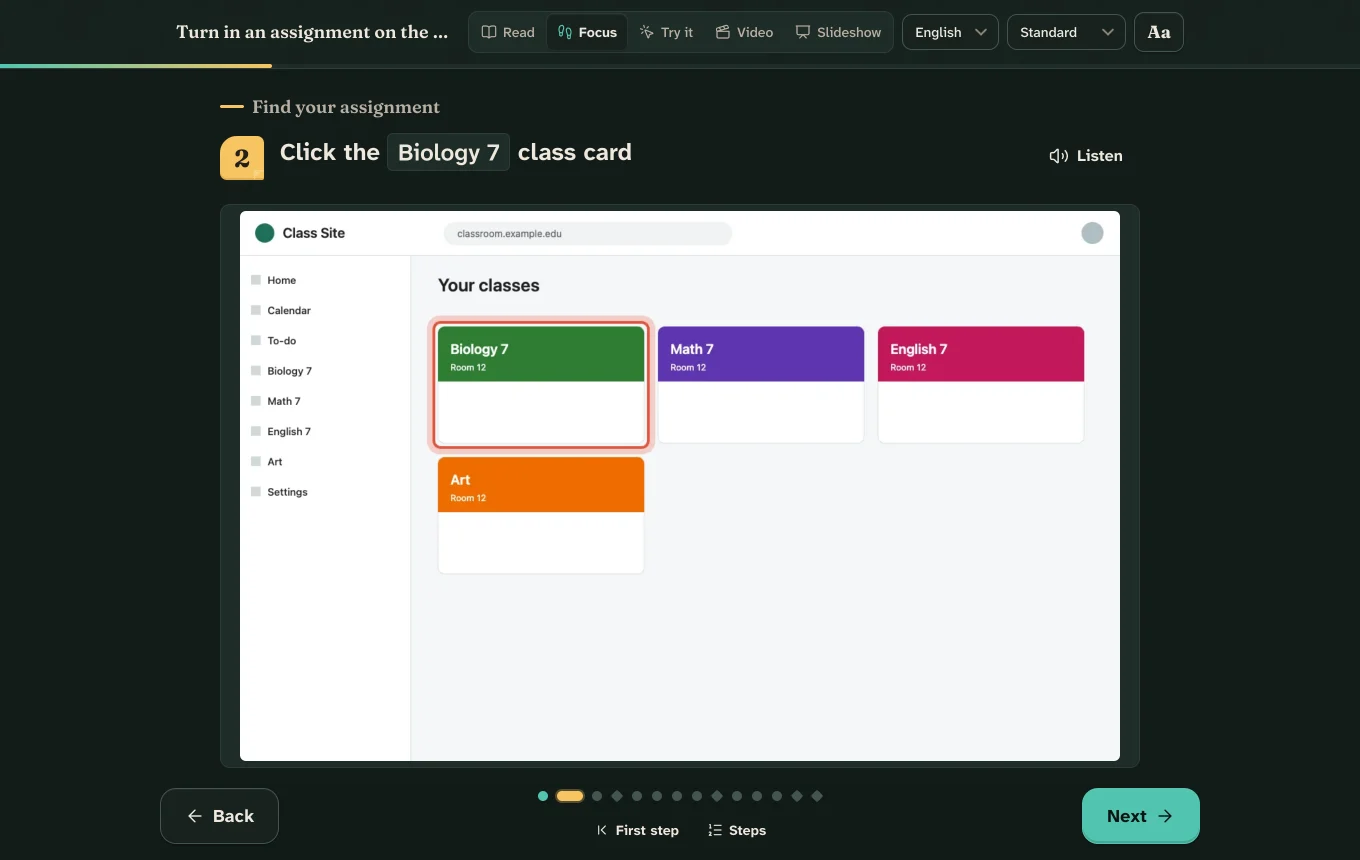
The student player in Try it mode. The step reads: Click the Biology 7 class card. Students click where they would click on the screenshot.The student player in Try it mode. The step reads: Click the Biology 7 class card. Students click where they would click on the screenshot.

One recording. Everything your class needs.

  • A clear guide

    Numbered steps with the button name in bold and a zoomed, circled screenshot.

  • Click-along practice

    Students try each click on the pictures first, with gentle hints. Nothing real gets clicked.

  • A printable worksheet

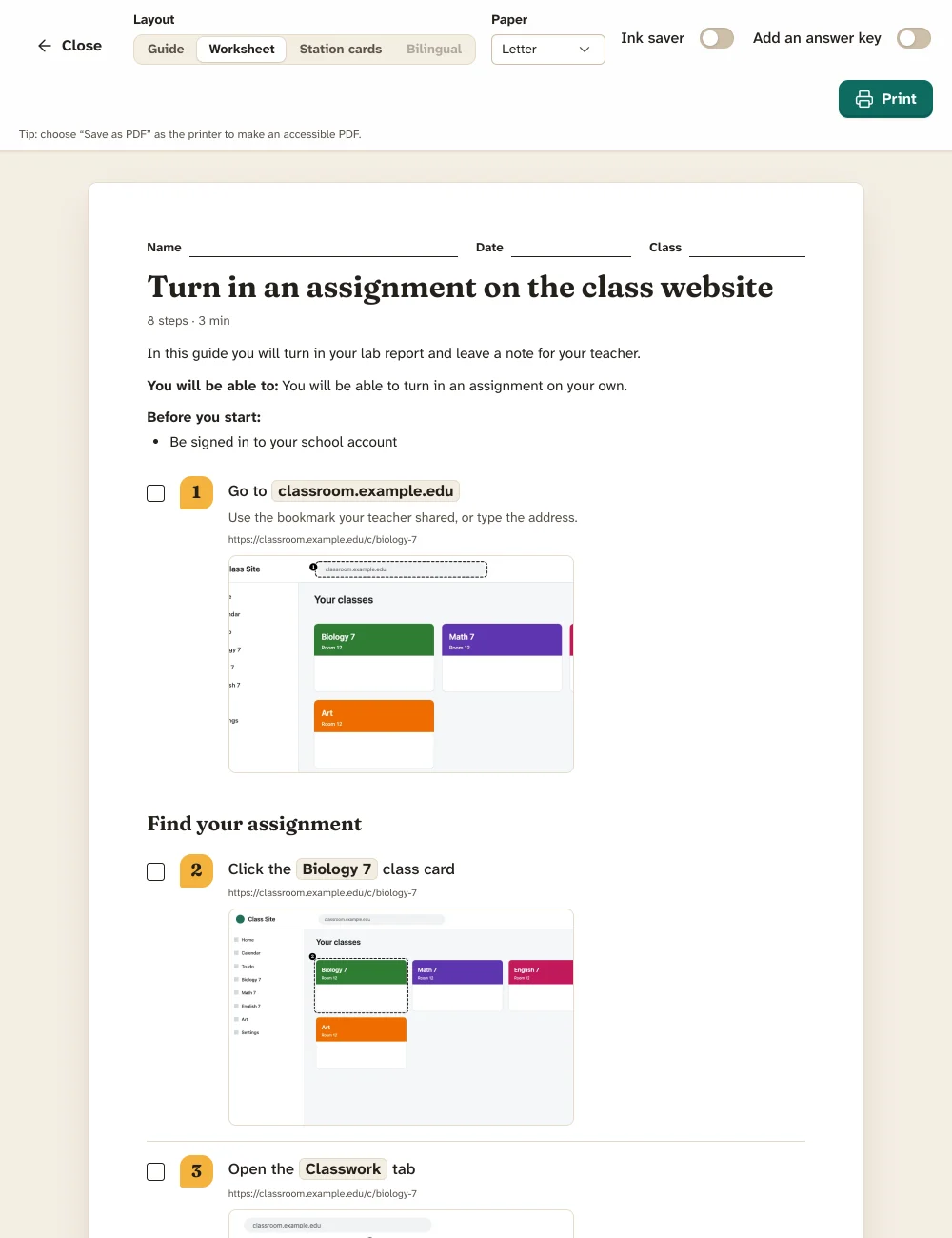
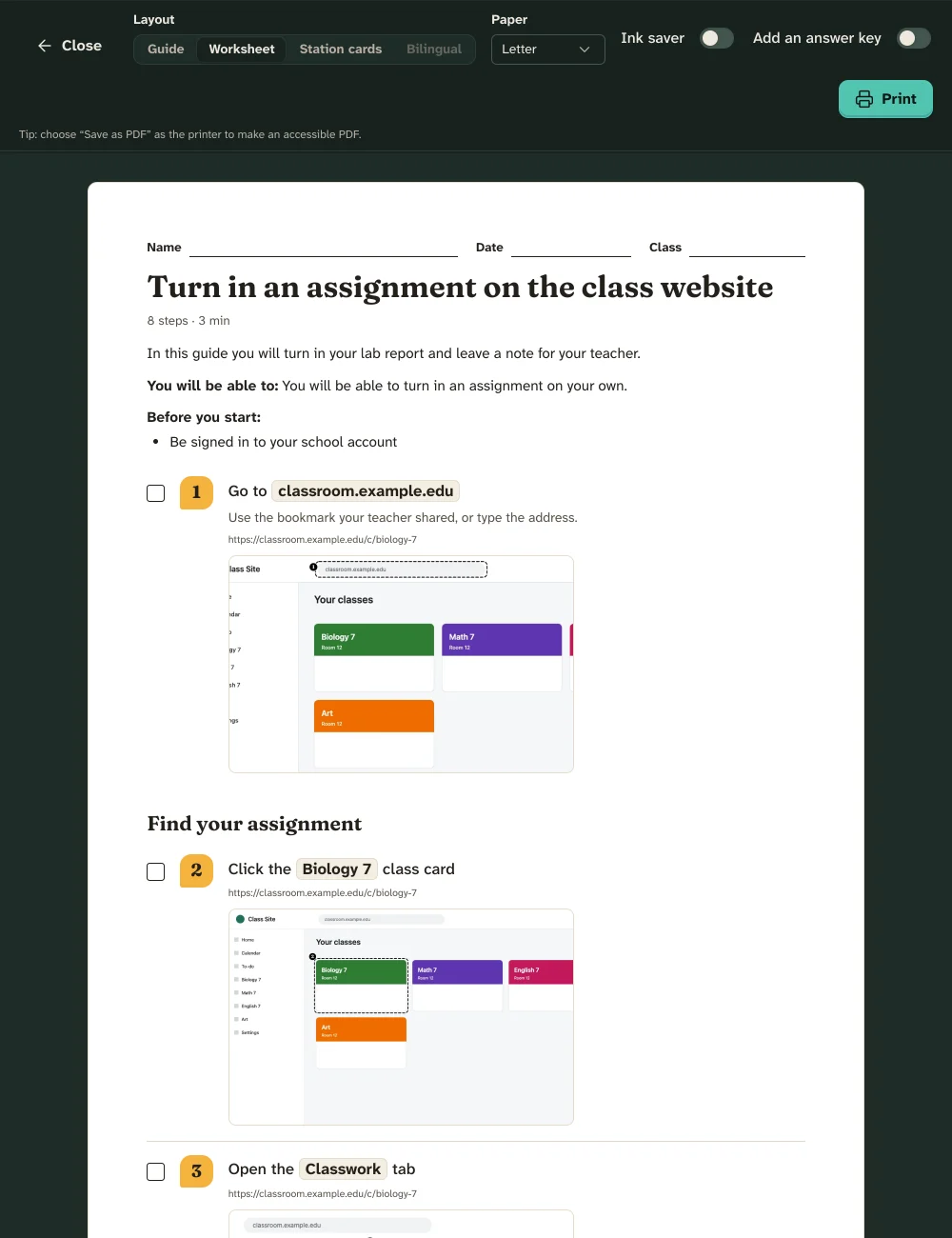
    Name and date lines, checkboxes and a QR code that opens the online version.

  • A version for families

    Spanish or another home language, plus an early-reader version of the same steps.

  • A slideshow

    One big step per screen for the projector, with keyboard and clicker support.

  • Files for anywhere

    PDF, Word, Slides, a single web page, SCORM, video or GIF. Made on your computer.

How it works

From “how do I turn this in?” to a guide, before the bell.

  1. 1

    Record

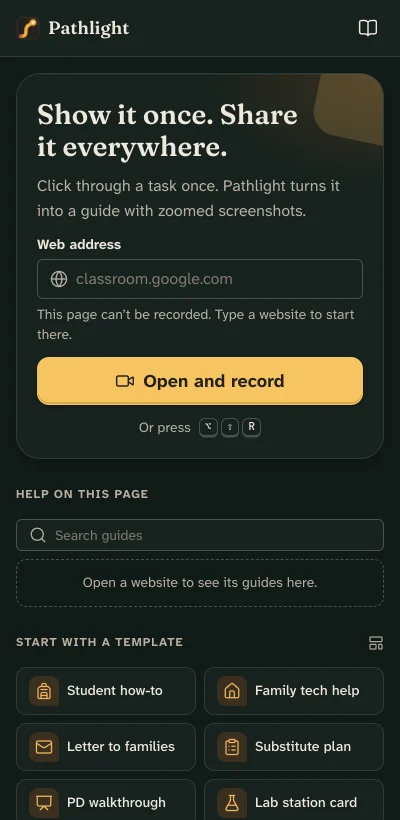
    Open the website you want to teach and press Record. Do the task the way you normally would. Each click becomes a step with a screenshot taken just before you click.

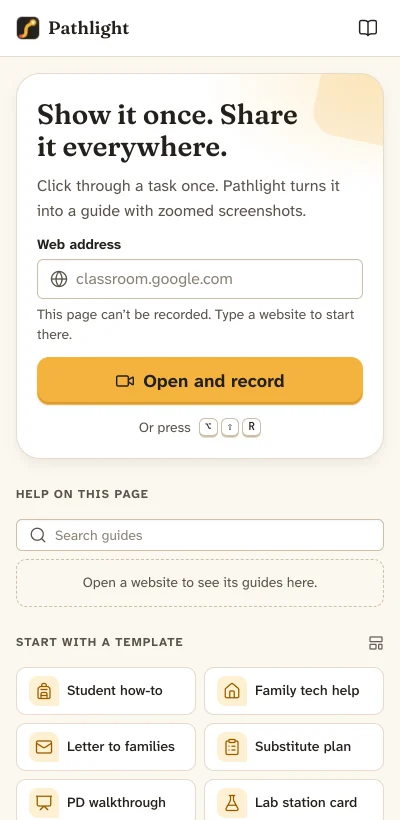
    The Pathlight side panel: Show it once. Share it everywhere. A web address field and an Open and record button, with templates below.The Pathlight side panel: Show it once. Share it everywhere. A web address field and an Open and record button, with templates below.
  2. 2

    Polish

    Pathlight has already written “Click Turn in”. Fix a word, drag a step, add a tip or a quick check question. Draw arrows or blur something in the Studio.

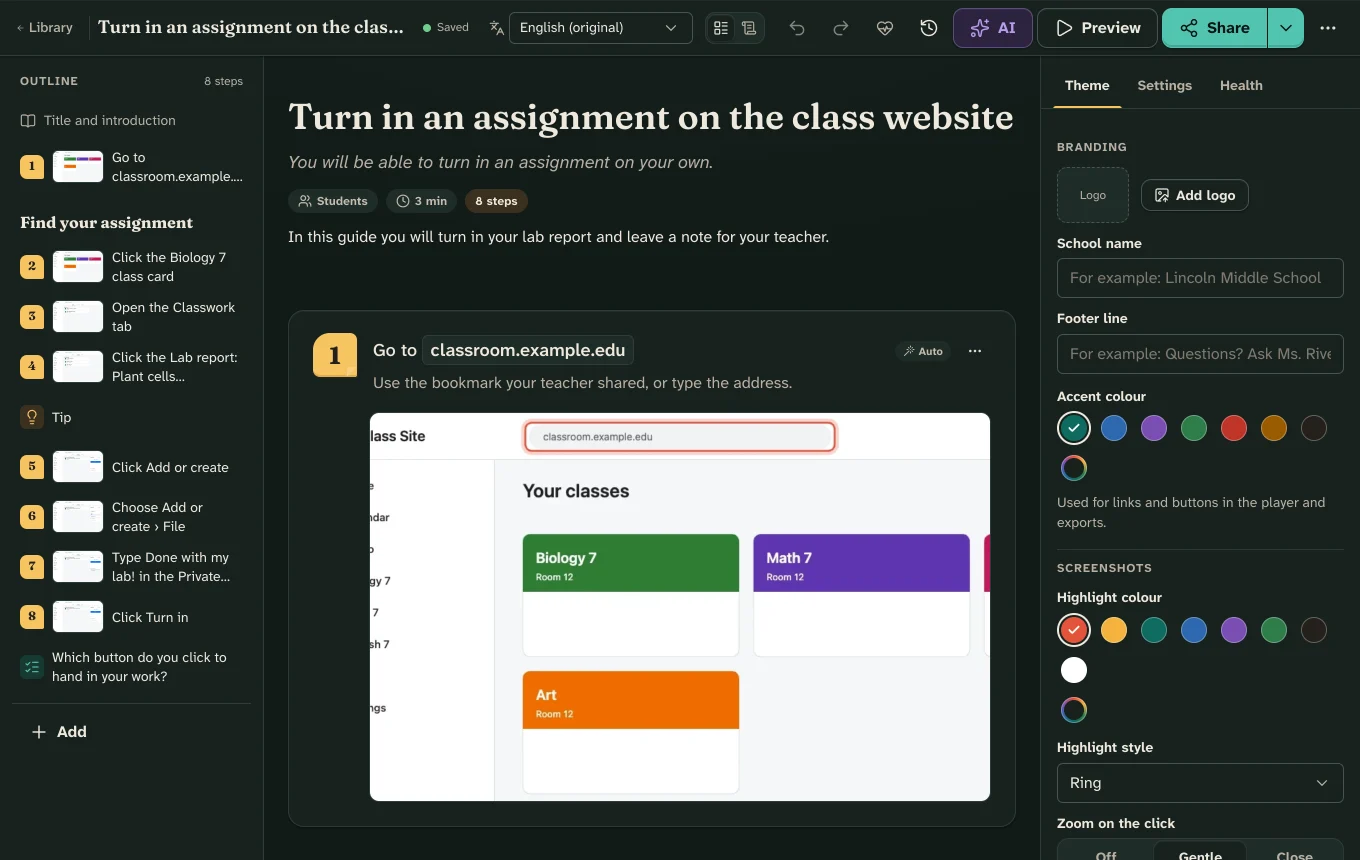
    The guide editor with the step Go to classroom.example.edu, its zoomed screenshot, and the outline of steps on the left.The guide editor with the step Go to classroom.example.edu, its zoomed screenshot, and the outline of steps on the left.
  3. 3

    Share

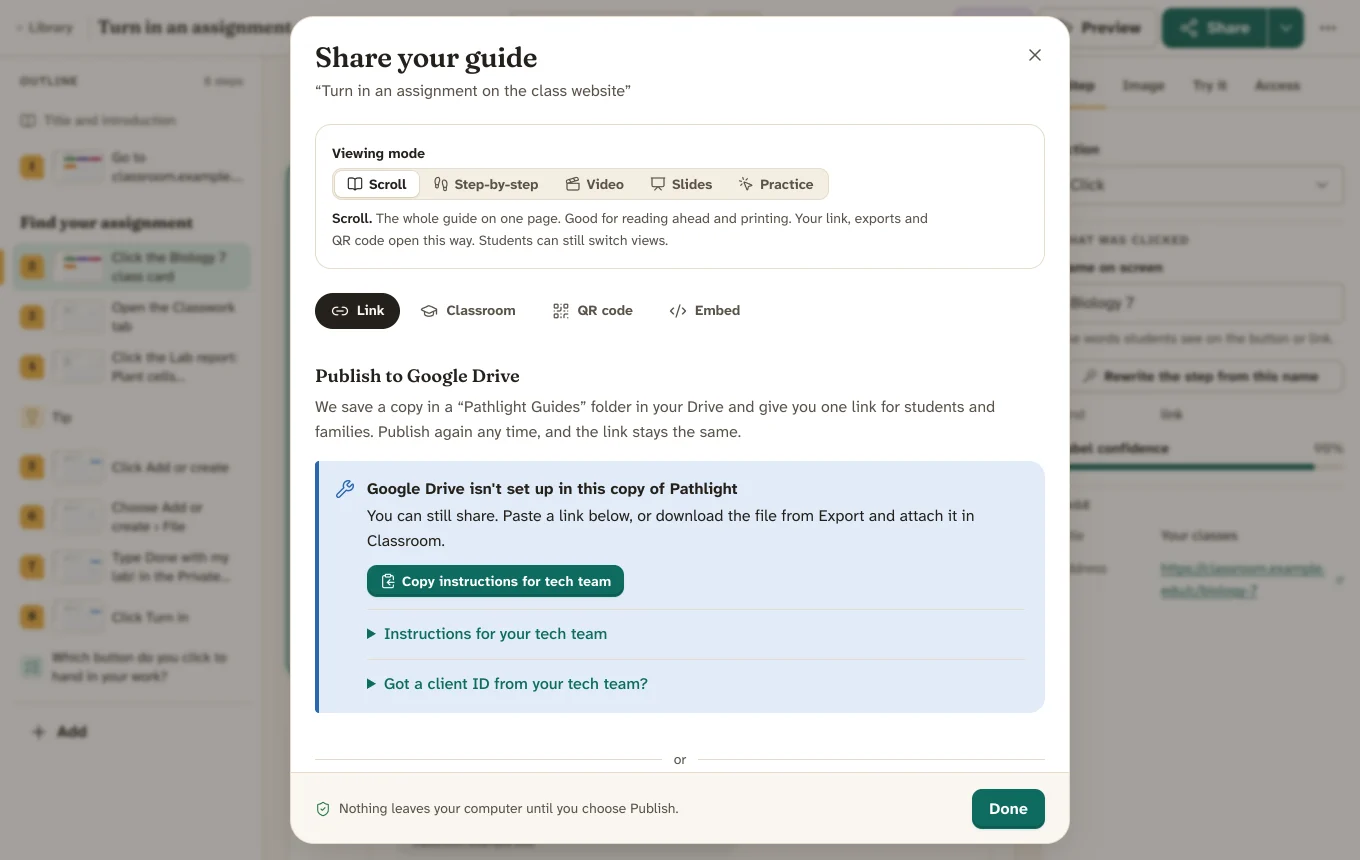
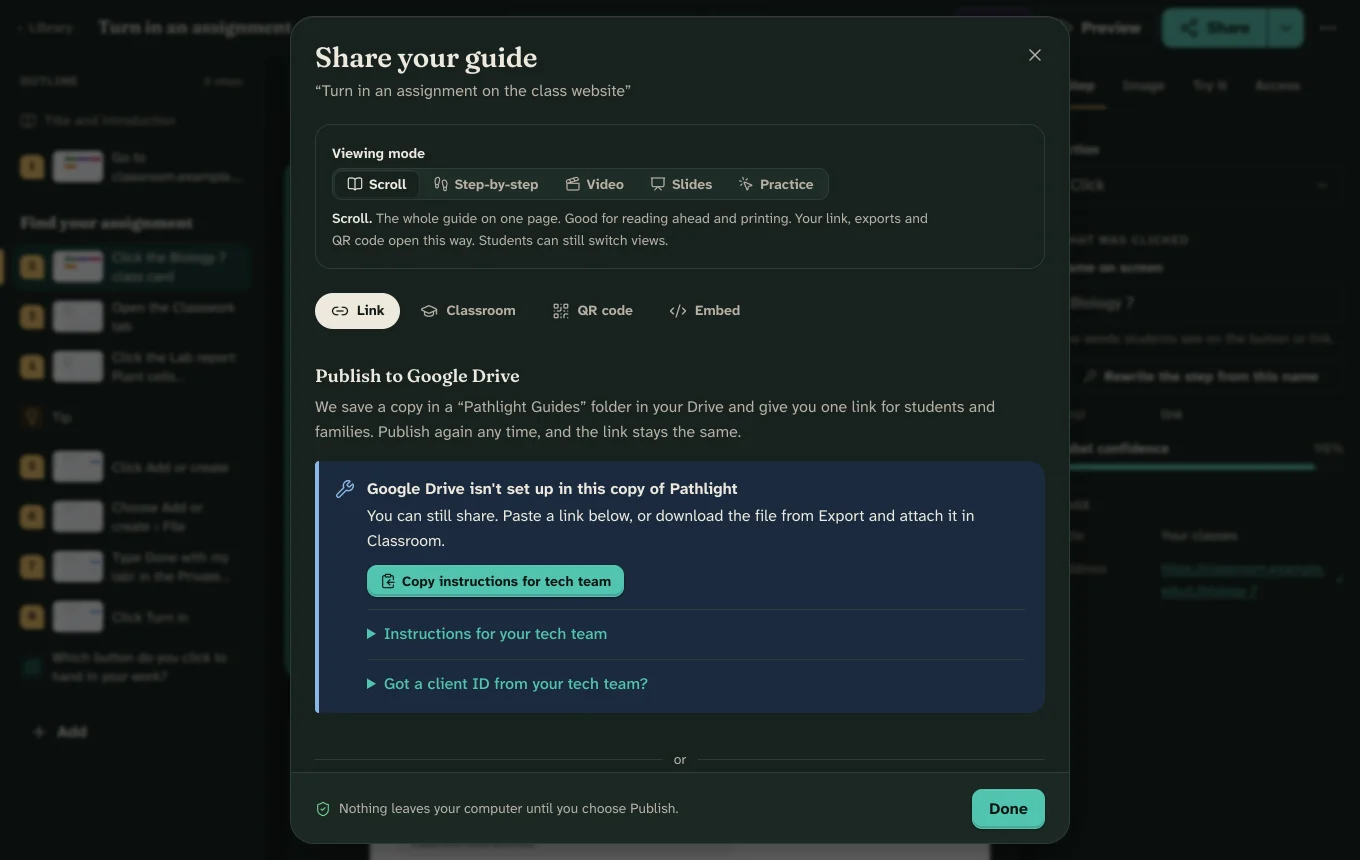
    Export one web page file and post it wherever your class already looks: Google Classroom, Canvas, Schoology or a class site. Print it, or project it as a slideshow.

    The Share dialog with tabs for Link, Classroom, QR code and Embed, and a note: Nothing leaves your computer until you choose Publish.The Share dialog with tabs for Link, Classroom, QR code and Embed, and a note: Nothing leaves your computer until you choose Publish.

Feature tour

Made for the way classrooms actually work.

Every feature below is in the preview you can download today. A few newer ones are marked Experimental while we test them on more computers.

Capture + Smart Blur

Record any website. Student names stay out of the pictures.

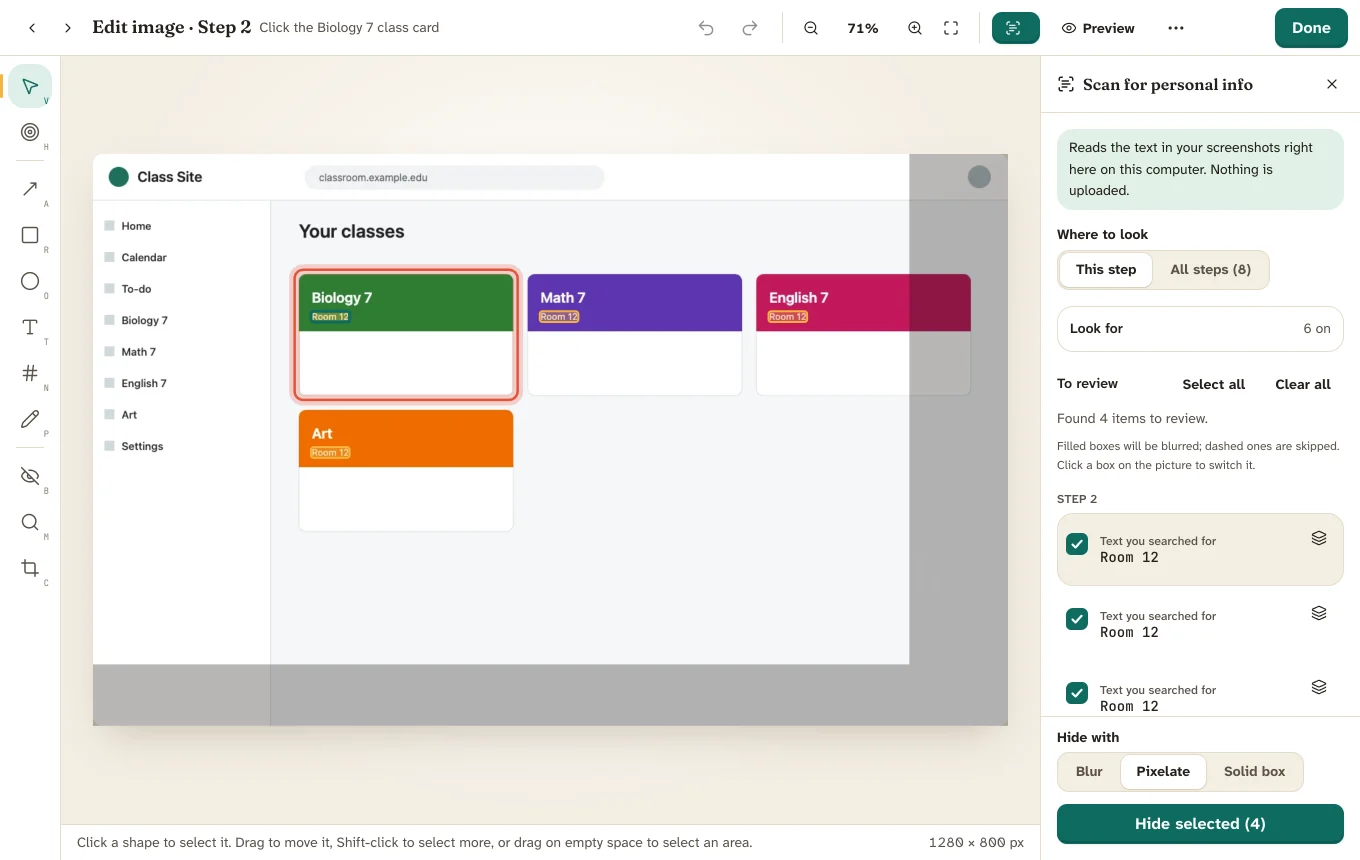
Smart Blur is on from the first click. It hides email addresses, phone numbers, long ID numbers and the names on your class roster, and burns the blur into the saved image.

  • Passwords and card numbers are never recorded.
  • Typing, menus, checkboxes, shortcuts, new tabs and even tall pages become clear steps.
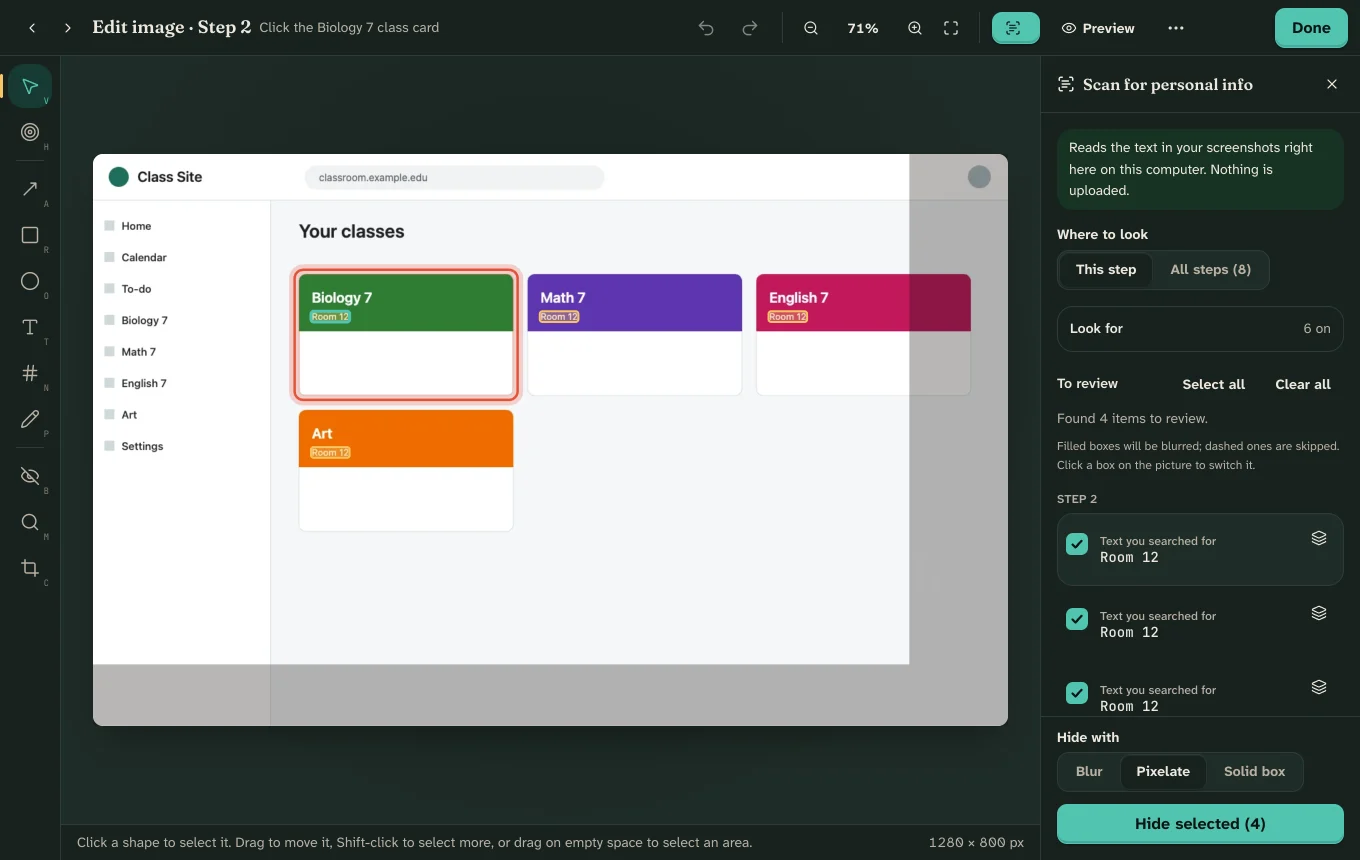
  • “Scan for personal info” reads your screenshots on your own computer and finds names you missed.
The Studio’s personal-info scan listing matches found in the screenshots, with buttons to blur each one everywhere.The Studio’s personal-info scan listing matches found in the screenshots, with buttons to blur each one everywhere.

The Studio

Point at the right thing, in two clicks.

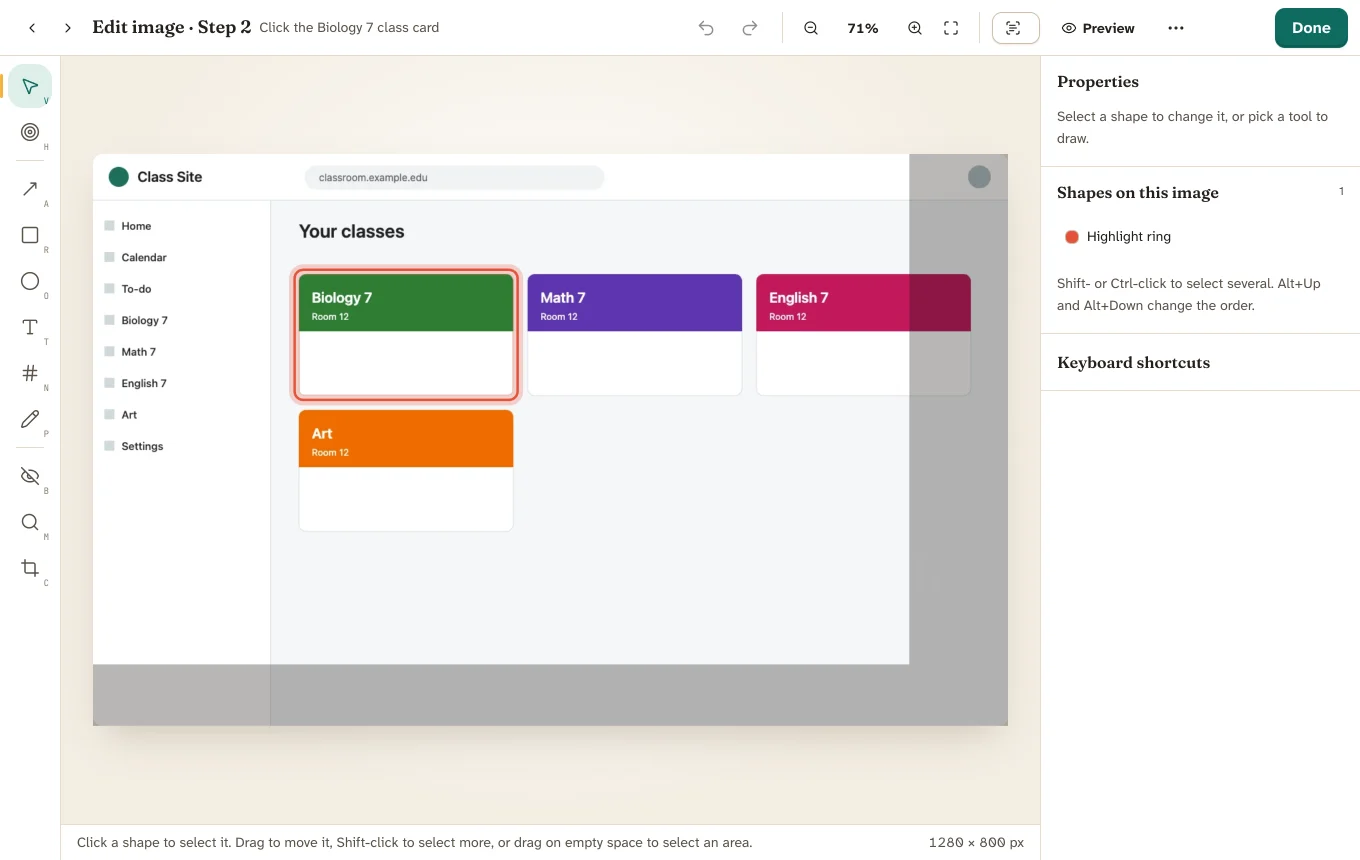
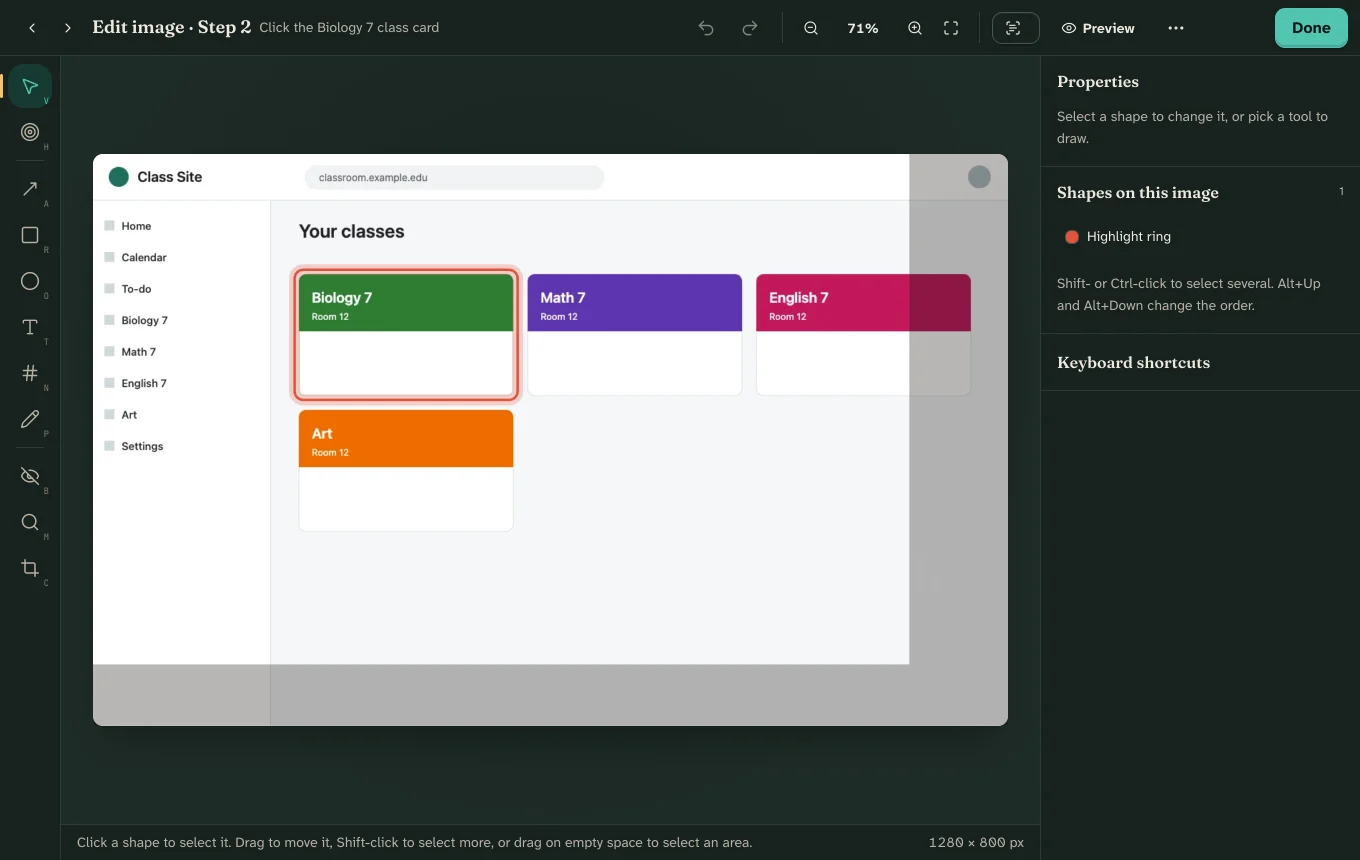
Each screenshot is zoomed to the button and circled for you. When you want more, the Studio adds arrows, boxes, text, step numbers, blur and crop. Your original picture is never changed, so you can always undo.

  • Replace or retake a step without starting over.
  • Reuse steps from other guides with the step library.
The Studio with a coral highlight ring around the Biology 7 class card and a dimmed area outside the crop.The Studio with a coral highlight ring around the Biology 7 class card and a dimmed area outside the crop.

Try it + checkpoints

Practice before the real thing.

In Try it mode, students click where they would click on each screenshot. A miss gives a hint, not a red X. Quick checks along the way ask “Which button hands in your work?”, so you know they followed.

  • Multiple choice, true or false, put in order and “find it on the picture” questions.
  • Read, Focus (one step at a time), Try it and Slideshow modes.
  • A completion code students can hand in, with no student accounts.
Open the live demo
Try it mode asking the student to click the Biology 7 class card on the screenshot.Try it mode asking the student to click the Biology 7 class card on the screenshot.

Reading levels + translation

The same steps, in the words each reader needs.

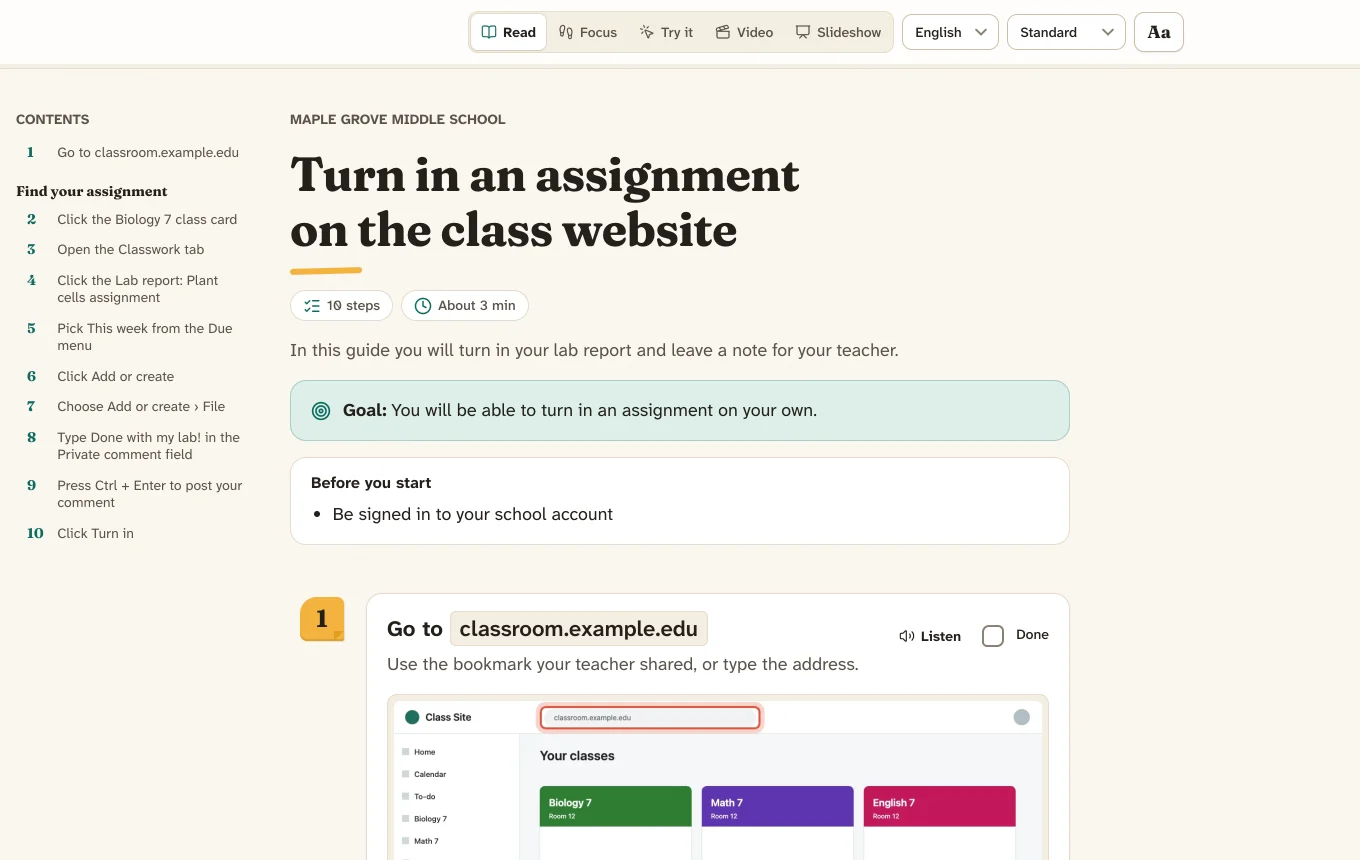
Make an early-reader version or a Spanish version for families from the guide you already have. Students switch language and level right in the guide, and the button names stay as they appear on screen.

  • Write versions yourself, use Chrome’s built-in on-device translator where your Chrome has it, or add your own AI key.
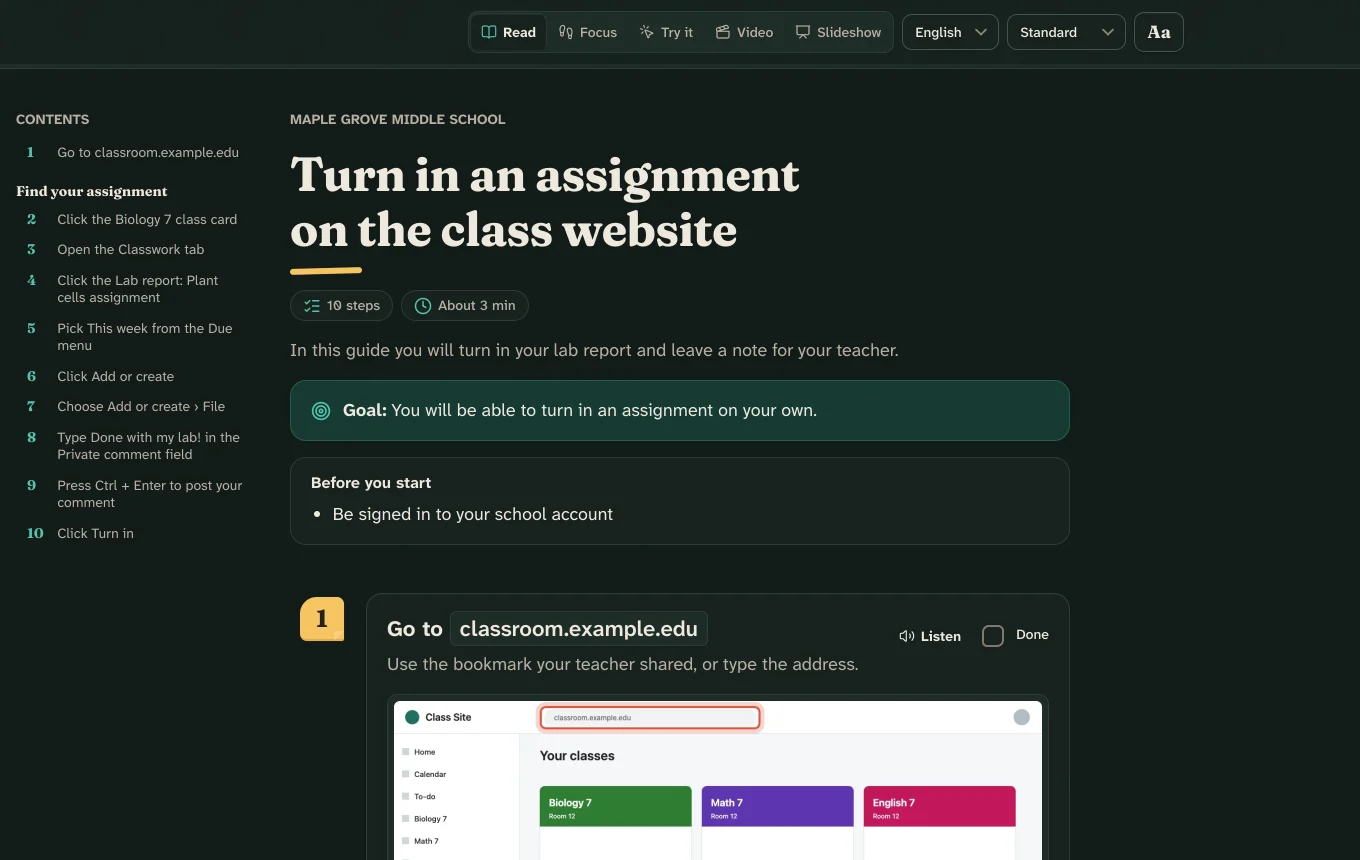
  • Reader comfort for everyone: bigger text, a dyslexia-friendly font, wider spacing, high contrast and read aloud.
The student player in Read mode with language and reading-level menus at the top.The student player in Read mode with language and reading-level menus at the top.

Print worksheets + QR

Paper still works. Pathlight prints it beautifully.

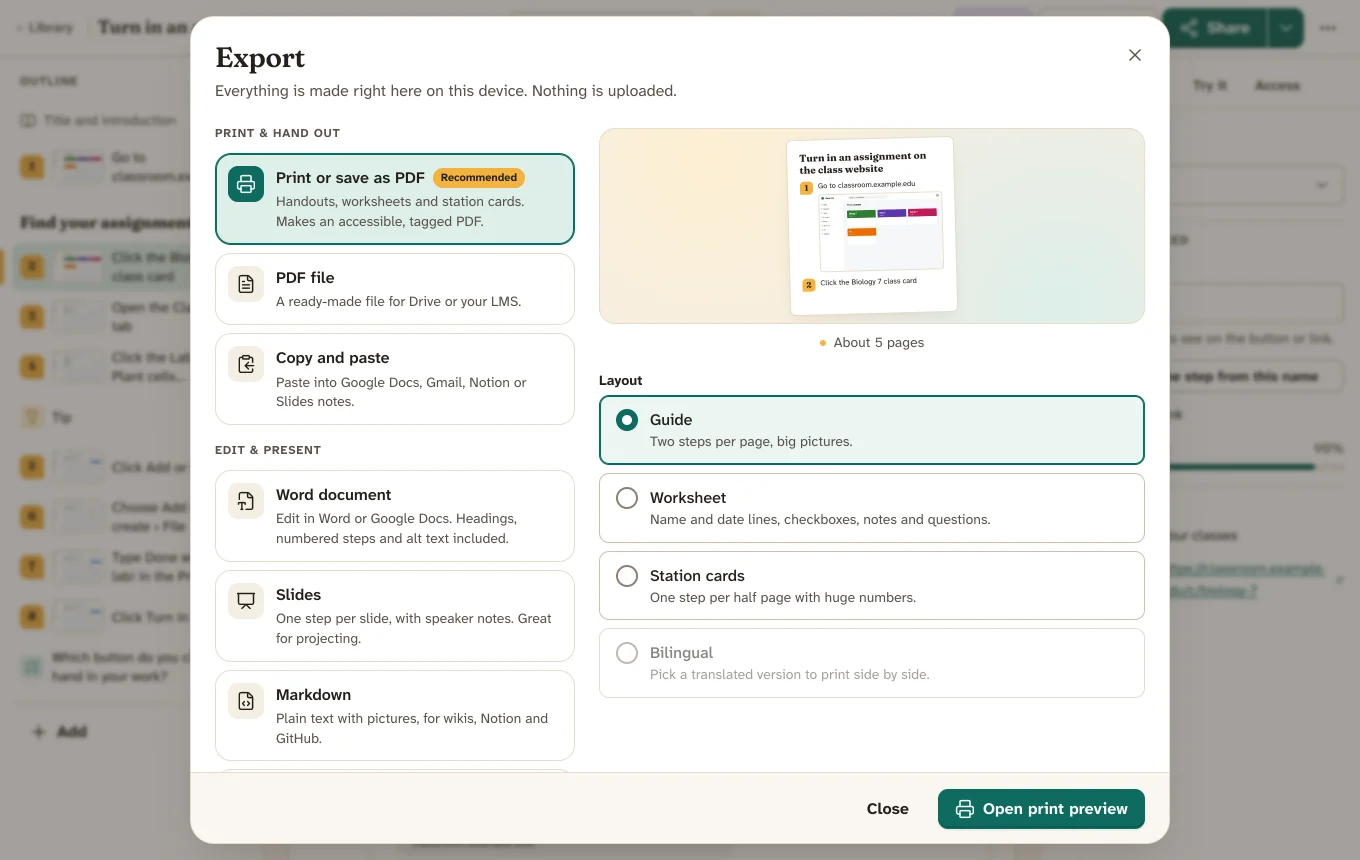
Print a full guide, a worksheet with name and date lines and checkboxes, or big station cards for the lab table. Add a QR code so students can open the interactive version on a device.

  • Bilingual layout puts English and the family’s language side by side.
  • Ink saver mode and an optional answer key for the checkpoints.
A printed worksheet titled Turn in an assignment on the class website, with name, date and class lines, checkboxes and numbered steps with screenshots.A printed worksheet titled Turn in an assignment on the class website, with name, date and class lines, checkboxes and numbered steps with screenshots.

Exports

Every format, free, made on your computer.

Nothing is uploaded to make a file. Choose the one that fits where your students are.

  • PDF
  • Word (DOCX)
  • Slides (PPTX)
  • Web page (one HTML file)
  • SCORM 1.2
  • Markdown
  • Video (MP4 / WebM)
  • GIF
  • Image pack
  • Copy and paste
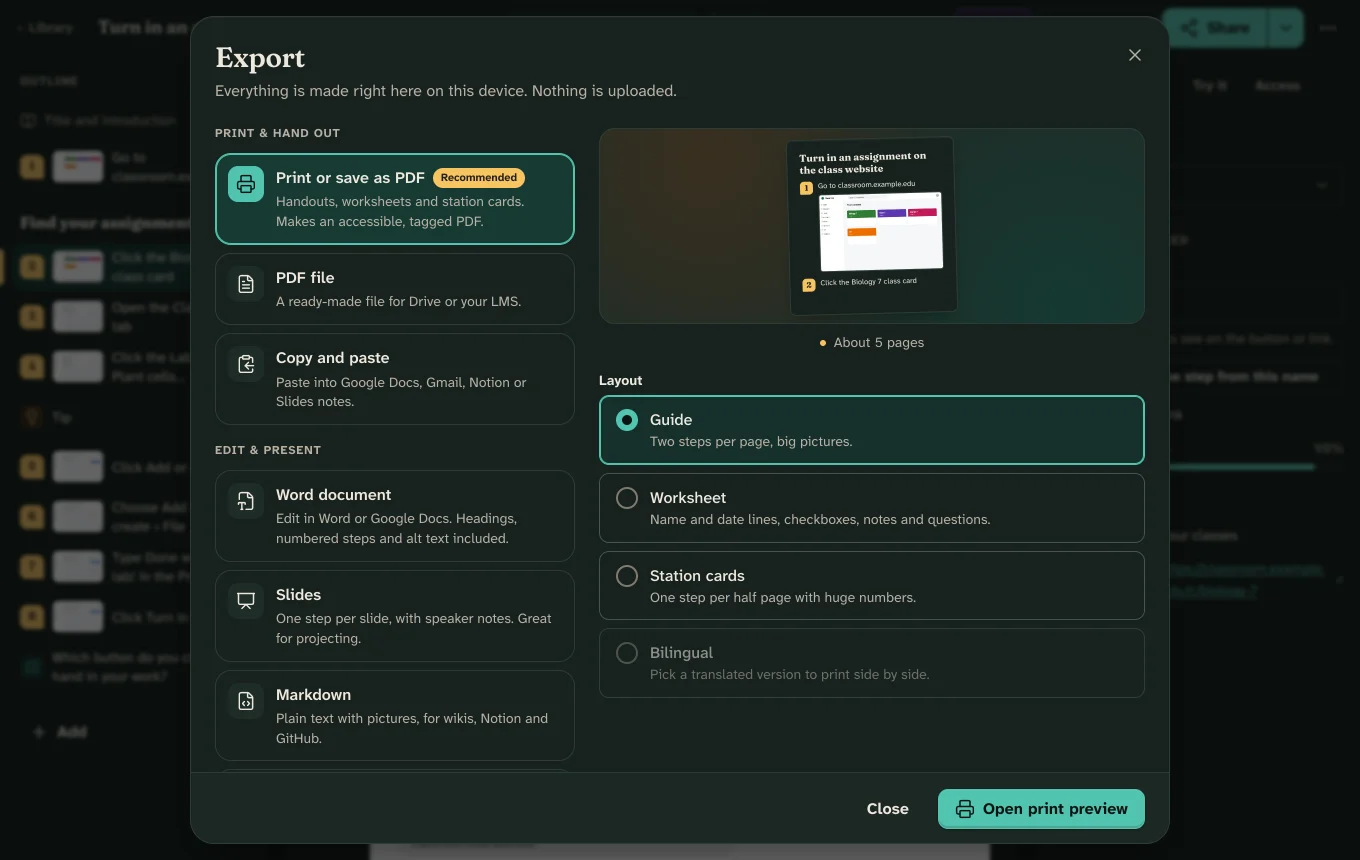
The Export dialog listing Print or save as PDF, PDF file, Copy and paste, Word document, Slides and Markdown, with a page preview and layout choices.The Export dialog listing Print or save as PDF, PDF file, Copy and paste, Word document, Slides and Markdown, with a page preview and layout choices.
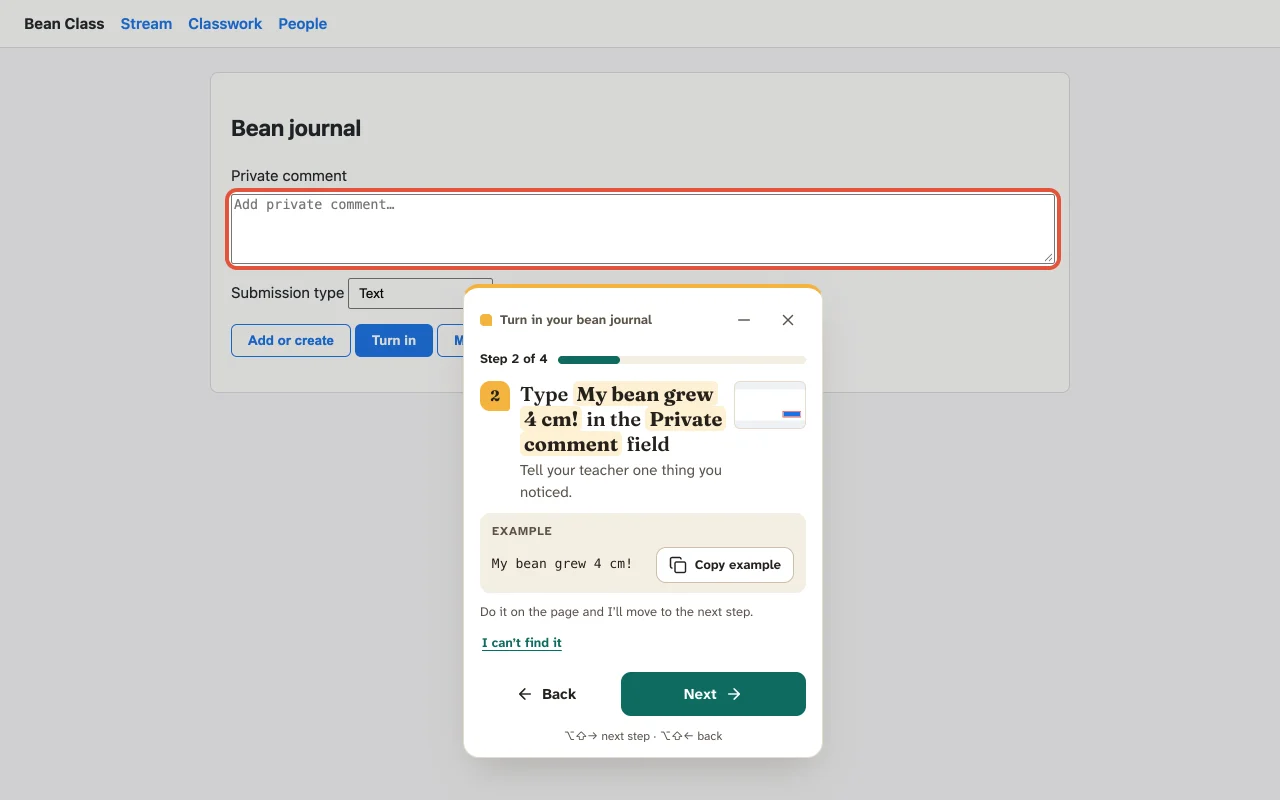
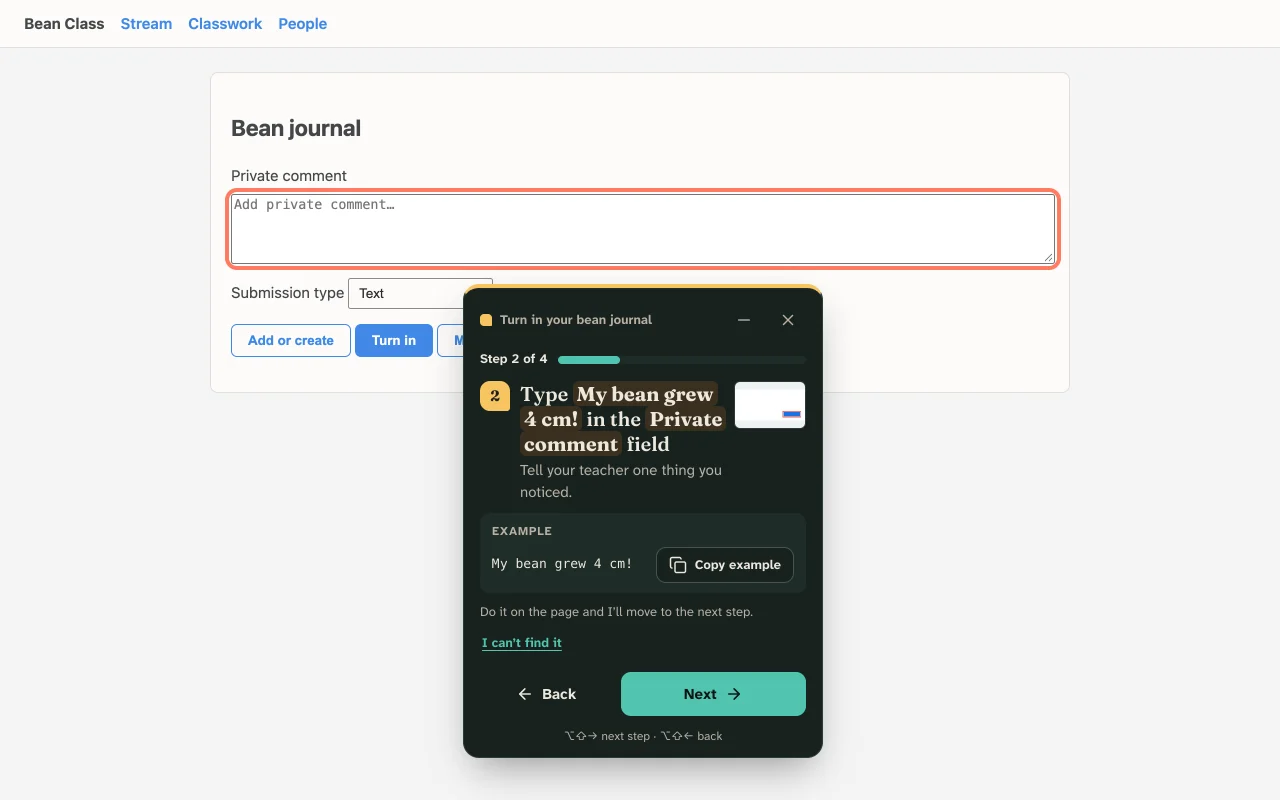
  • Guide Me on a real class page: a card says Step 2 of 4, Type My bean grew 4 cm! in the Private comment field, and the field is ringed in coral.Guide Me on a real class page: a card says Step 2 of 4, Type My bean grew 4 cm! in the Private comment field, and the field is ringed in coral.

    Guide Me, on the real website

    Students open “Help on this page” and Pathlight finds each step on the live site, rings it and moves on when they do it. It copes when the page has changed a little.

  • Voice narration Experimental

    Talk while you record. Pathlight cuts the audio into one clip per step and can turn what you said into step text. Clips stay on your computer.

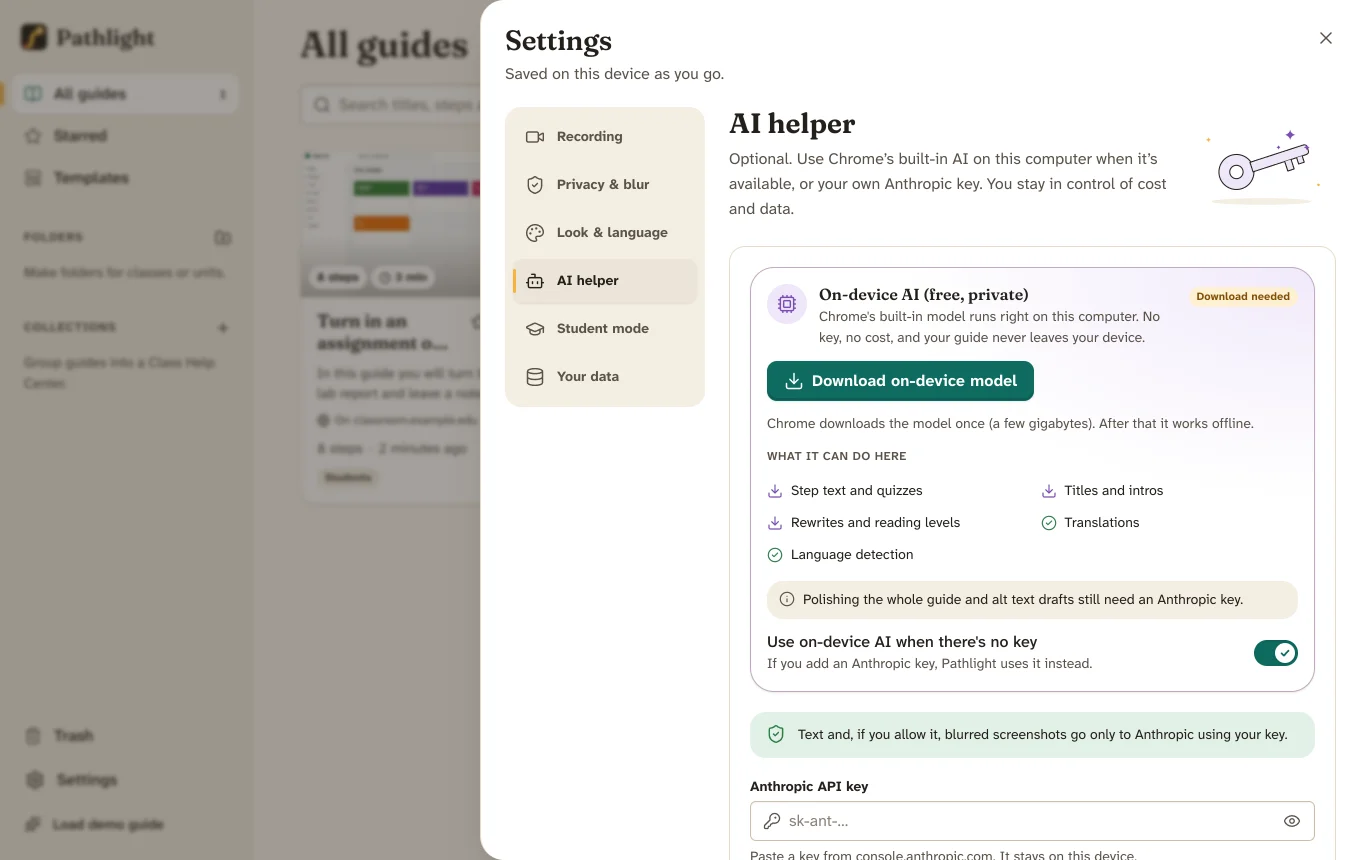
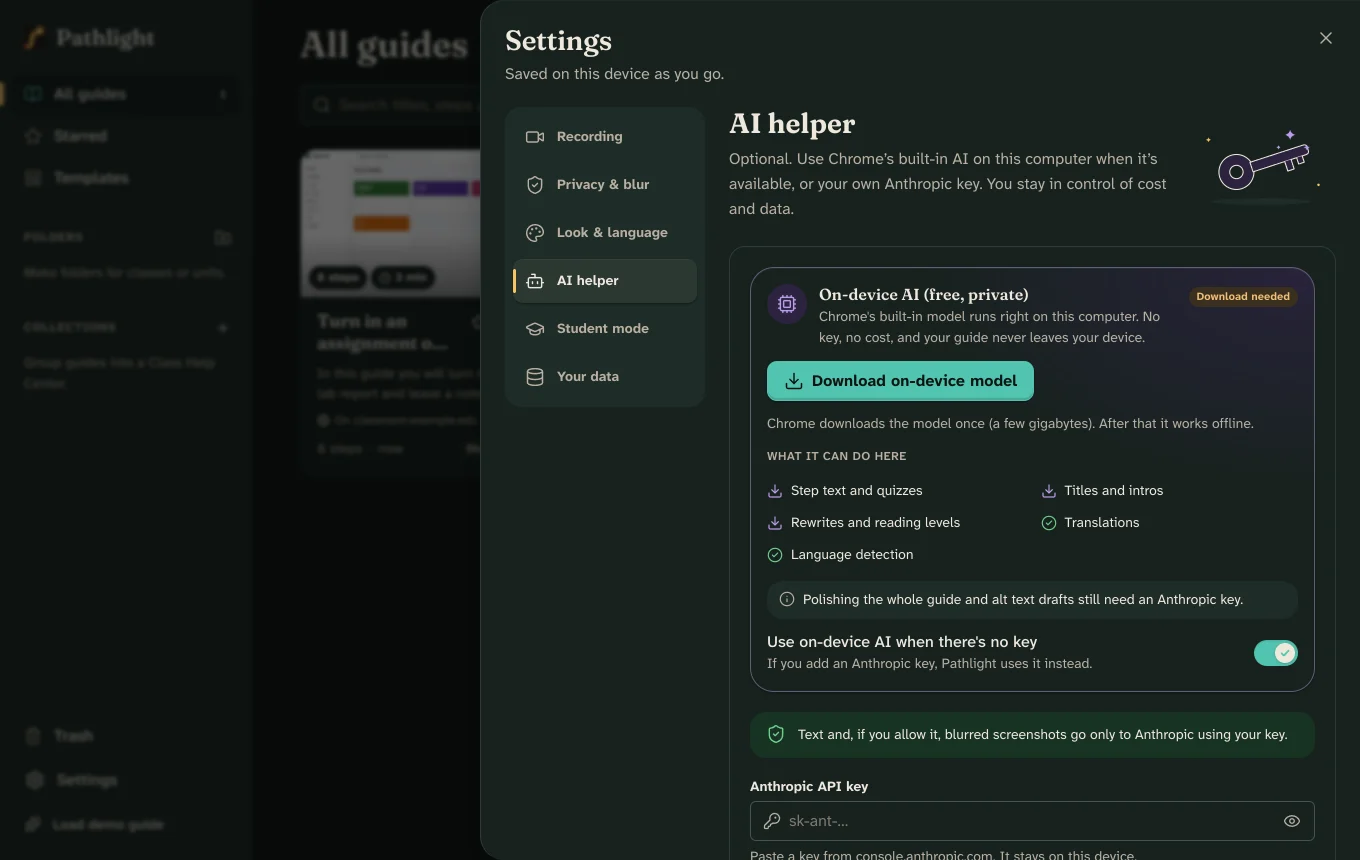
  • Settings for the AI helper: an on-device card that says No key, no cost, and an optional Anthropic key.Settings for the AI helper: an on-device card that says No key, no cost, and an optional Anthropic key.

    On-device AI Experimental

    Where Chrome’s built-in AI is available, Pathlight can tidy step text and translate on your own computer, with no key and no cost. Everything also works without AI.

Private by design

Your guides live on your computer. That’s the whole design.

Pathlight has no account, no server and no analytics. We never receive your guides, screenshots or anything about you or your students.

Read the privacy summary
  • Local-first

    Guides, screenshots, rosters and settings are stored in your browser on the device you use. Removing the extension removes them.

  • No account, for you or students

    Nothing to sign up for. Students open a shared guide like any web page.

  • You decide what leaves

    Data leaves only when you export a file, or choose an optional feature like your own AI key. AI is off until you turn it on, and sends text only by default.

  • FERPA and COPPA posture

    The maker collects no student data and stores no education records. Student mode turns off AI and sharing and blurs everything, for students who make their own guides.

Free for teachers. No limits. No watermark.

Pathlight runs on your computer, so there’s no server bill to pass on to you. There’s no paid plan and nothing to upgrade to.

Things other guide makers often charge for, included:

  • Unlimited guides and steps
  • No watermark on anything
  • PDF, Word and Slides exports
  • SCORM for your LMS
  • Personal-info blur
  • Translation and reading levels
  • Annotations and branding
  • Version history
  • Unlimited students and co-teachers
  • A help panel right on the website

Early preview · Version 0.1.1

Install Pathlight in about a minute.

Pathlight isn’t in the Chrome Web Store yet, so you add it yourself. It works in Chrome 116 or newer on Windows, Mac, Linux and ChromeOS.

Download for Chrome

pathlight-extension.zip · 12.0 MB

  1. 1
    Unzip the file. You’ll get a folder called pathlight-extension. Keep it somewhere it won’t be deleted, like Documents.
  2. 2
    Open the extensions page. Type chrome://extensions in the address bar and press Enter.
  3. 3
    Turn on Developer mode with the switch in the top-right corner.
  4. 4
    Click Load unpacked and choose the pathlight-extension folder.
  5. 5
    Pin Pathlight. Click the puzzle-piece icon in the toolbar, then the pin next to Pathlight. A short welcome tour opens with a practice recording.

On a school Chromebook? Many districts turn off Developer mode. Share the IT and deployment guide with your tech team; it lists every permission and policy setting.

Questions

Good questions from teachers.

Is it really free?

Yes. Every feature in the preview is free, with no caps on guides or steps and no watermark. Pathlight runs on your computer, so there are no servers for us to pay for.

Do my students need an account or the extension?

No. Students open a guide like any web page, on a Chromebook, iPad or phone. They only need the extension if you want them to use Guide Me on the real website, or to make guides of their own.

Why isn’t it in the Chrome Web Store?

Pathlight is an early preview. Until it’s listed, you install it with Load unpacked (the steps are above). It won’t update by itself, so download a new copy now and then.

What leaves my computer?

Nothing, unless you send it. Exports are made on your device. If you add your own AI key, step text goes straight from your browser to the AI provider, with roster names and ID numbers swapped out first. See privacy in plain language.

Do I need an AI key?

No. Steps are written by rules as you click, and you can edit anything. AI is an optional helper for rewording, reading levels, translation, quiz questions and alt text.

How do I get a guide into Google Classroom or my LMS?

Export it as one web page file and attach it to an assignment or post, or upload it to Google Drive and share the link. For Canvas, Schoology or Moodle you can also export SCORM 1.2. PDF and Word work everywhere.

Which websites can I record?

Any website that opens in a normal Chrome tab, including Google Classroom, Canvas, Schoology, Clever and Google Docs. Chrome doesn’t let extensions record its own settings pages or the Web Store.

Is it accessible?

Pathlight is built toward WCAG 2.1 AA. Guides use real headings and lists, every picture has editable alt text, and the student player works with a keyboard and screen readers. Students can enlarge text, switch to a dyslexia-friendly font or have steps read aloud.

What languages does it speak?

The extension itself is in English and Spanish. Guides can be translated into other languages for families, and right-to-left languages like Arabic are supported.

Show it once. Then get back to teaching.